Requirements#
- Windows 8.1 or newer. Support for Windows 7 and 8 ended in 2.61.0. On 8.1 you also need the Universal C Runtime (built into Windows 10 and later) and a console that understands ANSI escape codes, such as ConEmu (per the official dependencies page).
- x86-64 or ARM64. Release archives come in
amd64andaarch64builds.
Install#
Pick one package manager. All three are in the official README.
winget install fastfetchwinget, built into Windows 10/11scoop install fastfetchScoopchoco install fastfetchChocolatey (admin shell)Then open a new terminal window and run fastfetch. You can also download fastfetch-windows-amd64.zip (or aarch64) from the releases page, extract it, and run fastfetch.exe from that folder.
Version per Windows package manager
Checked 2026-11-06 against the latest release, 2.71.0 (released that day). winget is not tracked by Repology.
View the data as a table
| Repository | Packaged version (minor versions behind 2.71.0) |
|---|---|
| Scoop | 2.71.0 · latest |
| MSYS2 (UCRT64) | 2.70.0 · 1 behind |
| Chocolatey | 2.68.1 · 3 behind |
fastfetch. Full results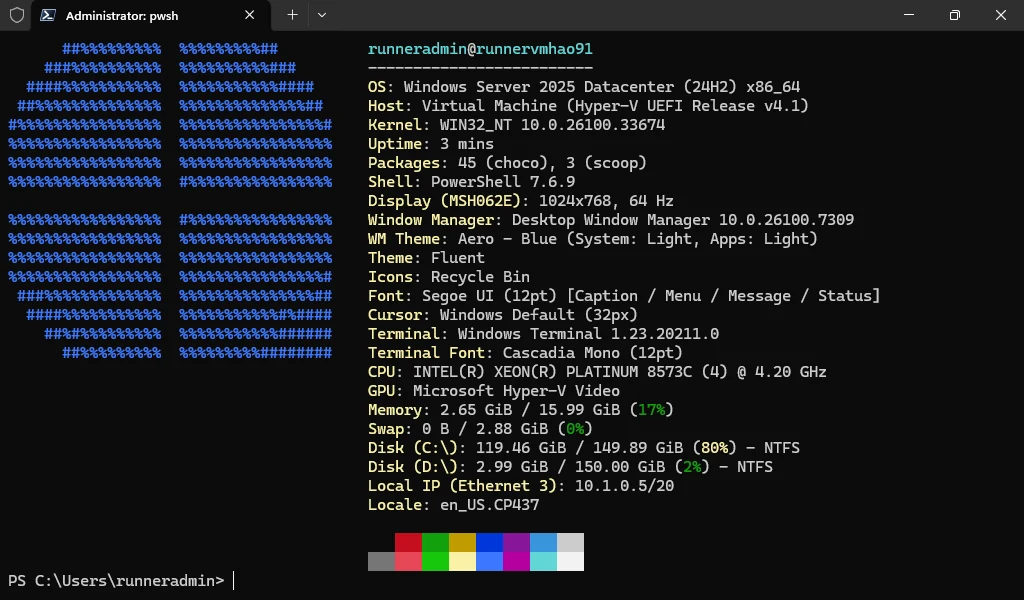
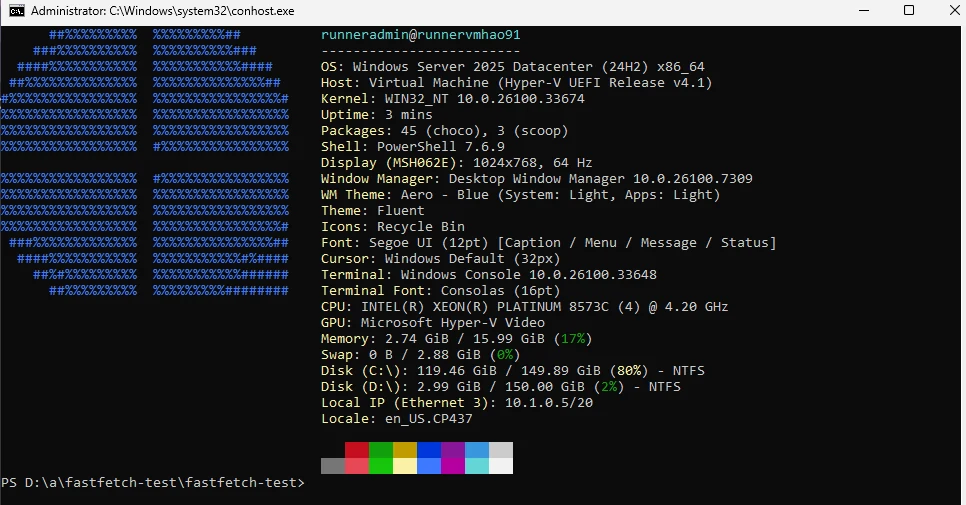
It looks the same in the classic console window (conhost), where the Terminal line reads "Windows Console" instead:
Is fastfetch.exe safe?#
We checked the 2.70.0 release three ways:
- It's signed. On our Windows test machine, PowerShell's
Get-AuthenticodeSignaturereportedStatus: Valid("Signature verified.") for the winget copy and the Scoop copy. The signer isCN=SignPath Foundation, the certificate was issued byGlobalSign GCC R45 CodeSigning CA 2020, and the signature is timestamped by DigiCert. The fastfetch README credits SignPath for its free code signing. - It's open source. The code is public on GitHub under the MIT license, and the Windows build is produced by the project's own CI from that code.
- It stays offline unless you ask. The README states the program "will not transfer any information to other networked systems unless specifically requested". Only two modules go online, PublicIp (ipinfo.io) and Weather (wttr.in), and neither is in the default output. fastfetch has no telemetry.
Check your own copy the same way:
Get-AuthenticodeSignature (Get-Command fastfetch).Source | Format-List Status, SignerCertificateExpect Valid and SignPath Foundation. If you got fastfetch somewhere other than winget, Scoop, Chocolatey or the GitHub releases page, and the signature isn't valid, delete it and reinstall from one of those. The release zip also contains flashfetch.exe, a small fixed-layout demo of fastfetch's code, and lua55.dll for Lua scripting in configs. Both are part of the official release; winget and Scoop also add a flashfetch command.
Update#
winget upgrade fastfetchwingetscoop update fastfetchScoopchoco upgrade fastfetchChocolateyWhere the config file lives on Windows#
Fastfetch doesn't create a config file by itself. Generate one:
fastfetch --gen-configOn Windows 10 and 11 this opens the interactive setup and saves %USERPROFILE%\.config\fastfetch\config.jsonc, for example C:\Users\you\.config\fastfetch\config.jsonc. When loading, fastfetch looks for fastfetch\config.jsonc in these folders, in order, and uses the first it finds:
%USERPROFILE%\.config\%ProgramData%\%APPDATA%\%LOCALAPPDATA%\%USERPROFILE%\
Inside MSYS2 or Git Bash (when MSYSTEM is set), $HOME/.config/, $HOME/ and $MINGW_PREFIX/etc/ are checked first. fastfetch --list-config-paths prints the exact list on your machine. To open the file:
notepad "$env:USERPROFILE\.config\fastfetch\config.jsonc"Run fastfetch every time PowerShell opens#
PowerShell runs your profile script at startup. Add fastfetch to it:
# create the profile file if it doesn't exist yet
if (!(Test-Path $PROFILE)) { New-Item -Path $PROFILE -ItemType File -Force }
notepad $PROFILE
Add a line containing fastfetch, save, and open a new PowerShell window. (We tested exactly this in PowerShell 7 on Windows Server 2025: the new window printed fastfetch's output before its prompt.) Windows PowerShell 5.1 and PowerShell 7 use different profile files, so repeat this in each one you use. If you see a script-execution policy error, your system blocks profile scripts. PowerShell's Get-ExecutionPolicy shows the current setting.
Images in Windows Terminal#
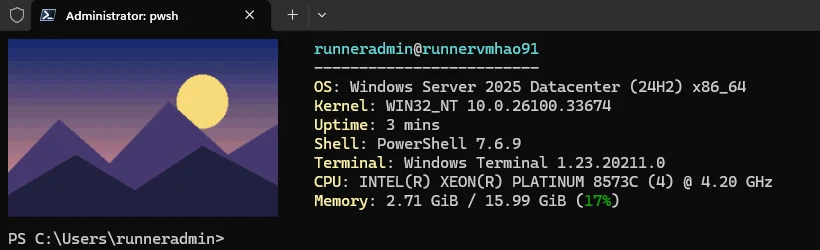
Windows Terminal understands the sixel image protocol, and since 2.69.0 fastfetch encodes sixel itself using Windows' own image decoder (WIC), so no ImageMagick is needed. The README says to set the type explicitly; don't use auto:
{
  "logo": {
    "type": "sixel",
    "source": "C:/Users/you/Pictures/logo.png",
    "width": 30
  }
}
Use forward slashes, or escape backslashes as \\. ~ works for your home folder (2.41.0+), and environment variables use %VAR% syntax, such as %USERPROFILE%/Pictures/logo.png. For mintty (Git Bash, MSYS2) and WezTerm, use "type": "iterm" instead.
We tested this in Windows Terminal 1.23 with fastfetch 2.70.0 from Scoop. The PNG appeared straight away, with no ImageMagick or other extra software:
What's different on Windows#
- Package counts: the Packages module counts Scoop and Chocolatey. winget counting is skipped by default because it can be slow; to include it, set
{"type": "packages", "disabled": []}, which turns every package manager on. - Exit codes: fastfetch's error codes are larger than 255. A POSIX shell sees them truncated (for example 144), but on Windows
$LASTEXITCODEshows the full value: 400 for an unknown option, 414 for a missing config, 477 for a config error. - Terminal queries: the TerminalTheme module, and TerminalSize when the console API can't answer, ask the terminal with escape sequences and wait up to 1 second for a reply. If a run feels slow in an unusual console, check those two with
fastfetch --stat. - Disk on network shares (2.70.0): volumes with per-user quotas now report the whole volume's size. Set
"useAvailable": trueon the Disk module to get the space available to you instead.
Uninstall fastfetch on Windows#
winget uninstall fastfetchwingetscoop uninstall fastfetchScoopchoco uninstall fastfetchChocolatey (admin shell)We tested the first two. winget printed Successfully uninstalled and fastfetch was no longer found in a new shell; Scoop removed both its fastfetch and flashfetch shims. Your config in %USERPROFILE%\.config\fastfetch\ stays; delete the folder if you want it gone. Also remove the fastfetch line from your PowerShell profile (notepad $PROFILE), or every new window will show an error.
Windows 7 and 8#
fastfetch 2.61.0 (2026-03-28) removed support for Windows 7 and 8; Windows 8.1 is the oldest version current releases run on. The last release before that change was 2.60.0 (2026-03-06). On Windows 7 or 8, download fastfetch-windows-amd64.zip for 2.60.0 from its release page instead of using a package manager, which would install the current version. You'll miss the features and fixes added since. We didn't test on Windows 7 or 8 ourselves.
Fastfetch in WSL#
Inside WSL you're running Linux, so install fastfetch there with the distribution's package manager. For the default Ubuntu, follow the Ubuntu guide. That copy reports the WSL Linux environment; the Windows copy reports Windows itself. You can have both.
Windows FAQ#
Is fastfetch a virus?
No. It's open-source software, and the official Windows build carries a valid code signature from SignPath Foundation, which we verified with Get-AuthenticodeSignature. If a scanner flags a copy, check its signature as shown above, and only use copies from winget, Scoop, Chocolatey or the GitHub releases page.
Do I need WSL to run fastfetch on Windows?
No. The Windows build is native and reads Windows' own APIs. Inside WSL you'd be running the Linux version, which reports the WSL environment instead.
'fastfetch' is not recognized as a command
Open a new terminal window after installing. If it still fails, the install folder isn't on PATH. With the zip download you have to add the folder to PATH yourself, or run .\fastfetch.exe from inside it.
Colors or the logo look broken
Use Windows Terminal or another modern console. On Windows 8.1 you need a console with ANSI support, such as ConEmu. Fastfetch also drops colors when its output is piped or NO_COLOR is set; --pipe false forces them on.
Can I use the Windows 11 logo on Windows 10, or the other way round?
Yes: fastfetch -l "Windows 11" or fastfetch -l "Windows 10". The logo gallery has every Windows logo, including Windows 95.